
Draw your signature once, save your details, and turn any PDF form into a signed, ready-to-send file in a few taps.
Download on theApp Store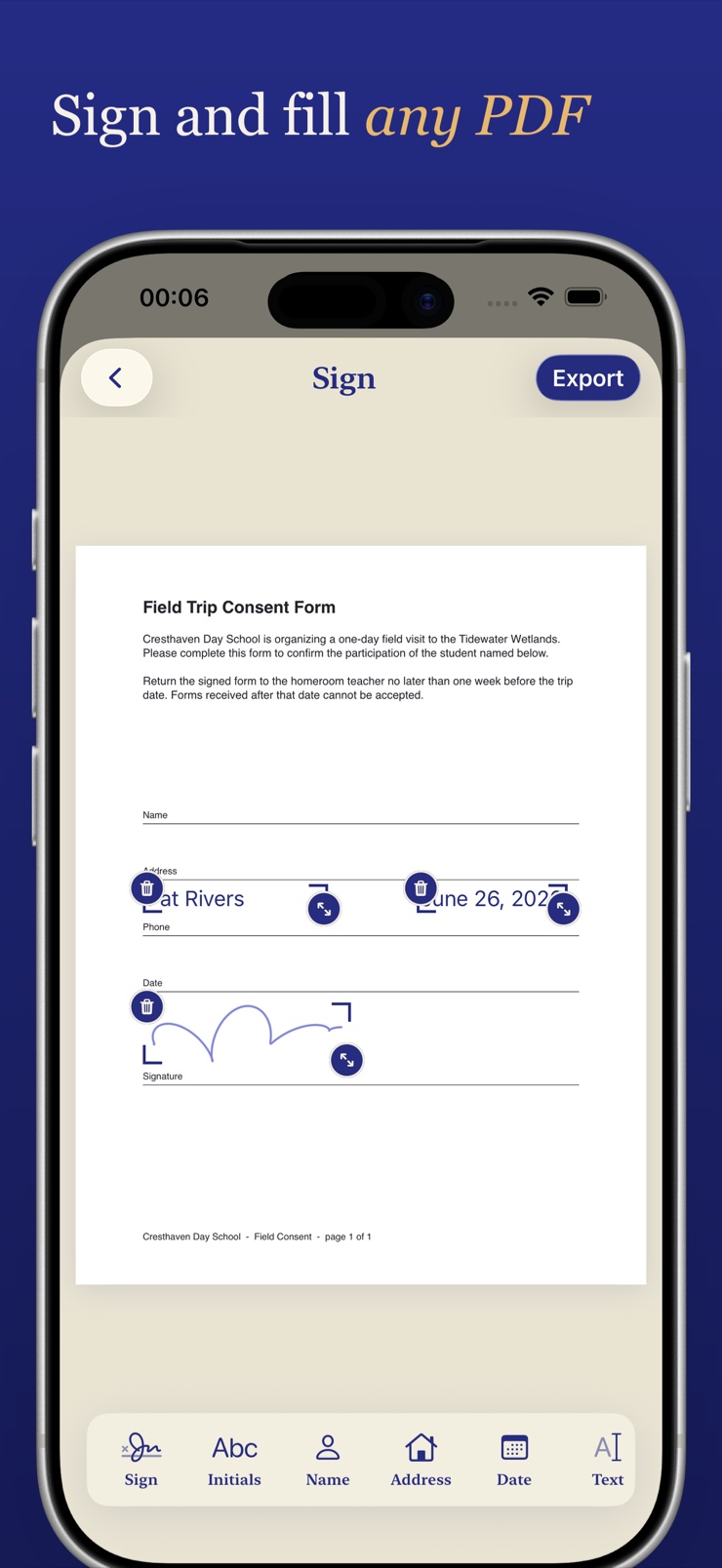
Inky turns the dreaded print, sign, scan, send-back routine into a few taps on your iPhone or iPad. Open any PDF, tap the detected fields to type text, add dates, or check boxes, and drop in your saved signature exactly where it belongs.
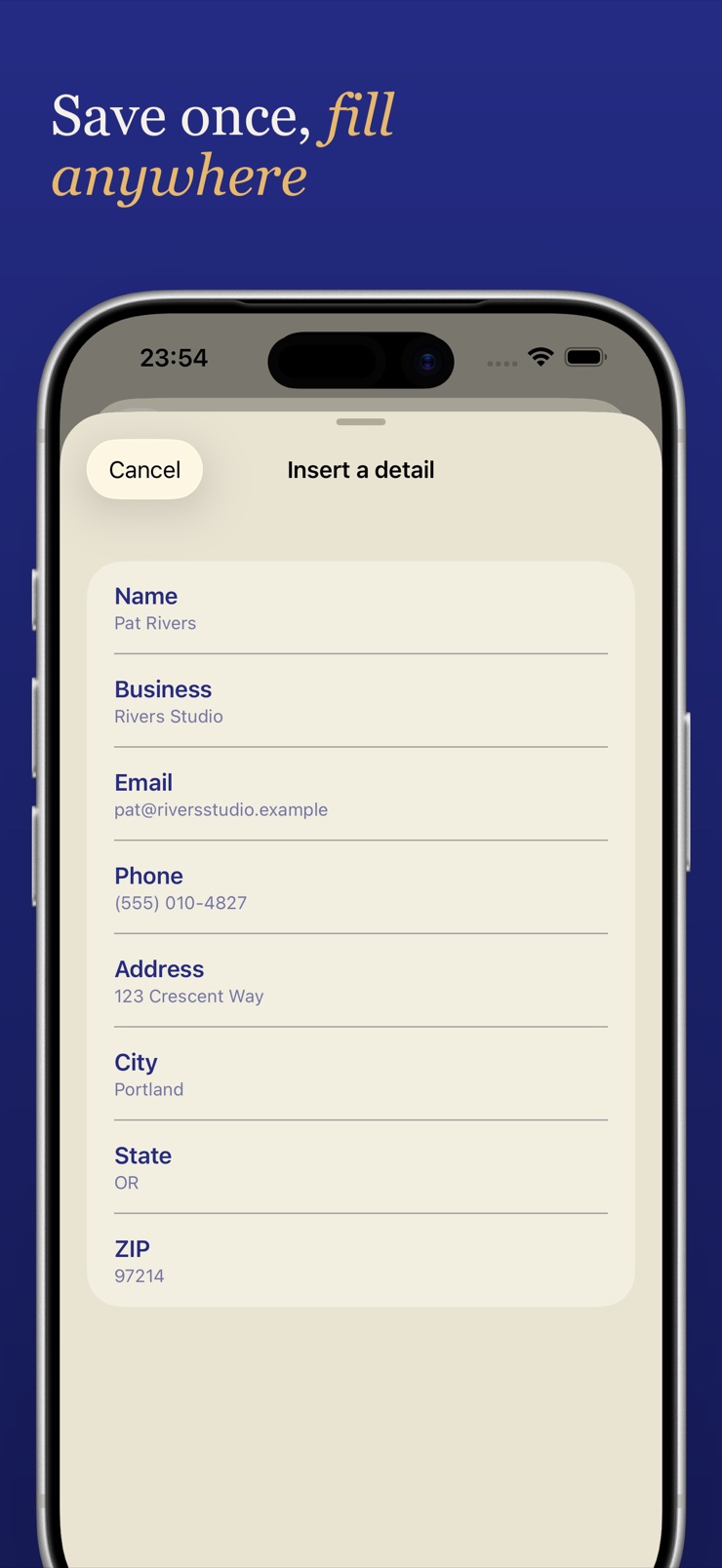
Save your name, address, phone, and date once, and Inky fills them into the next form for you — so a document that used to cost a trip to the printer takes seconds. Export a clean, flat PDF and share it anywhere, with no watermark and no account.
Inky is the little octopus who signs in ink, so your documents look done by hand, not by a stamp. Nothing you sign is uploaded; everything happens on your device.
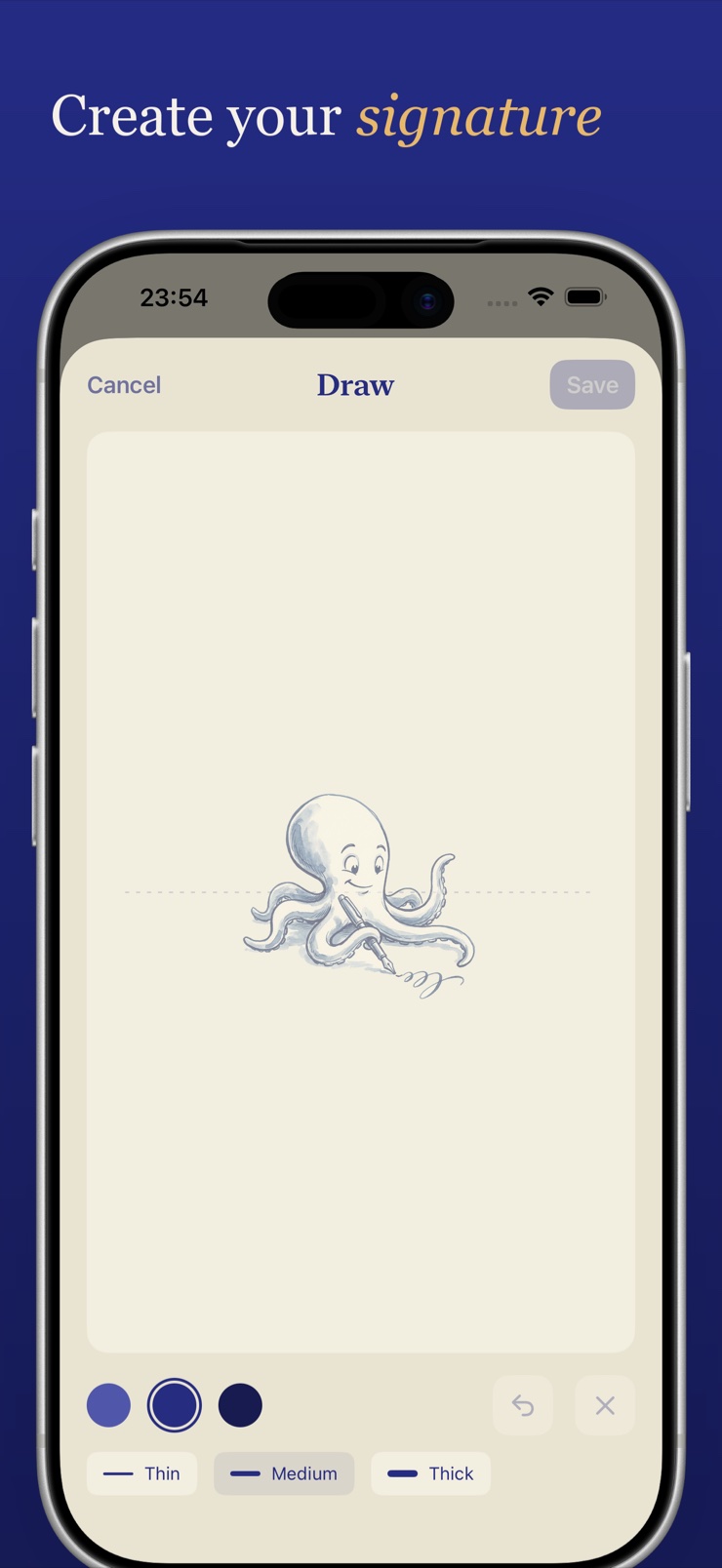
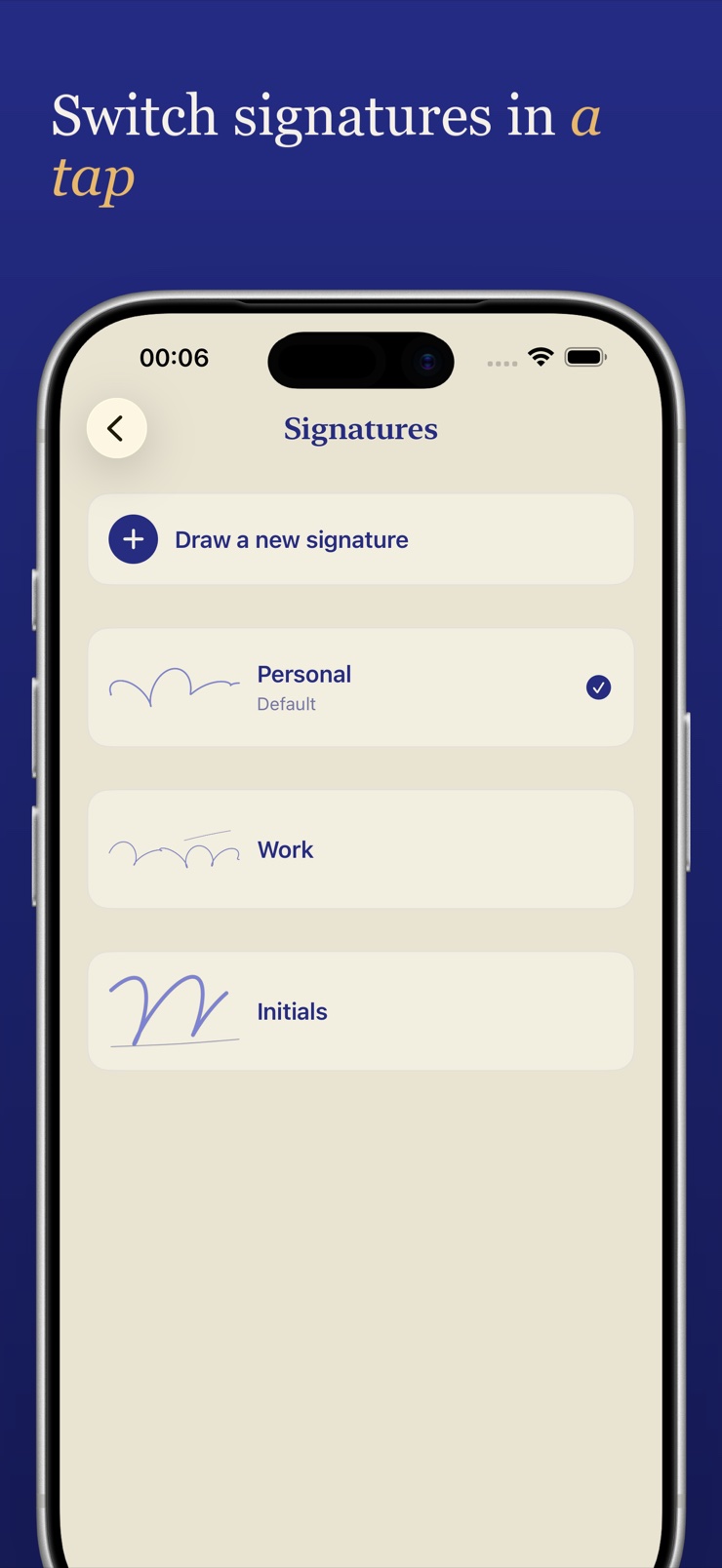
Create your signature and initials on screen, then reuse them instantly. Keep several saved signatures and switch between them in a tap.
Store your name, address, phone, and date once. Inky drops them into detected form fields on any PDF, so repeat paperwork takes seconds.
Inky detects fields on the page. Tap one to type text, insert today's date, or check a box — no fiddly cursor placement.
Drag your signature anywhere on the page, resize it to fit the line, and position it exactly where the form expects it.
Add notes and markup to any page before you send it, then export everything as a single flat PDF.
Open documents from the Files app and share the finished file anywhere. No watermark, no account, and nothing leaves your device.
Draw your signature and initials, and enter the name, address, and phone you use on forms. You only do this once.
Bring in a form from the Files app, Mail, or any share sheet. Inky detects the fillable fields on the page.
Tap fields to fill them from your saved details, add dates and checkmarks, and place your signature where it belongs.
Export a clean, flat PDF and share it straight back — no printer, no scanner, no watermark.
Draw it directly on the screen with your finger, or with Apple Pencil on iPad, the same way you would sign paper. Inky captures the stroke as a reusable signature you can place on any document afterwards. You can save several versions — a full signature and initials, for example — and pick the right one per document.
You do not need a printer at all: open the PDF in a signing app, place a saved signature on the signature line, and export the finished file. Inky opens PDFs from the Files app or any share sheet, lets you position and resize your signature precisely, and exports a flat PDF you can email straight back.
Yes. Inky stores your name, address, phone, and date once, then drops them into the detected fields of any PDF form for you. Instead of typing the same details on every form, you tap a field and pick the saved value. A form that used to take ten minutes takes a few seconds.
An electronic signature is a visible mark — like a drawn signature image — placed on a document to show agreement, while a digital signature is a cryptographic certificate applied by specialized software. Most everyday paperwork such as consent forms, leases, and applications asks for an electronic signature. Inky creates electronic signatures: a real, hand-drawn mark placed exactly where the form needs it.
In many countries electronic signatures are broadly recognized for everyday agreements — in the US under the ESIGN Act, for example — though some documents like wills or notarized deeds may have special requirements. If you are unsure, check with the party requesting the document. Inky produces a hand-drawn electronic signature flattened into the PDF, which is the format most forms expect.
Yes. Inky lets you draw and save initials separately from your full signature, which is handy for contracts that want initials on every page. Both live in your signature library, and you switch between them in a tap while working through a document.
Tap the field on the page: Inky detects text fields, date fields, and checkboxes, and gives you the right control for each. Dates can be inserted with a tap instead of typing, and checkboxes toggle on and off. Everything you add is flattened into the exported PDF.
No. The exported PDF is clean — just the original document with your text, dates, checkmarks, and signature flattened in. There is no watermark, no branding, and no account requirement standing between you and the finished file.
With Inky, nowhere. Documents, saved details, and signatures stay on your iPhone or iPad; nothing is uploaded to a server and there is no account. You open a file, sign it on the device, and share the result yourself — the app never sees your paperwork.
Yes, that is the core idea. You draw your signature once and it is saved to your library, ready to place on every future document. Combined with saved personal details, the second form you ever sign in Inky takes seconds rather than minutes.
Yes. Even when a PDF is just a scanned image with no interactive fields, you can type text anywhere on the page, add dates and checkmarks, and place your signature over the signature line. Inky exports the result as a flat PDF that looks like the paper was filled in by hand.
Inky runs on both iPhone and iPad. On iPad the larger canvas makes drawing a natural-looking signature easier, and you can sign with Apple Pencil for finer control. Documents and signatures work the same way on both devices.
Stop round-tripping paperwork through a printer — sign and send the next form in seconds.
Download on theApp Store